UK guide
IPTV subscription UK TV guide: seven days of listings in UK time
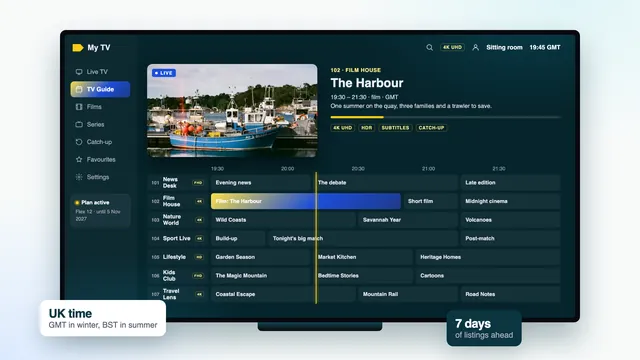
The IPTV subscription UK TV guide gives you seven days of listings for the live channels, set to UK time, inside the player you already use. With the Xtream login it arrives by itself; with an M3U playlist you add one more link. This page covers both routes, the hour that goes astray when the clocks change, keeping the listings fresh, reminders and favourites, and the marks that show which past programmes can still be played.
The IPTV subscription UK TV guide at a glance
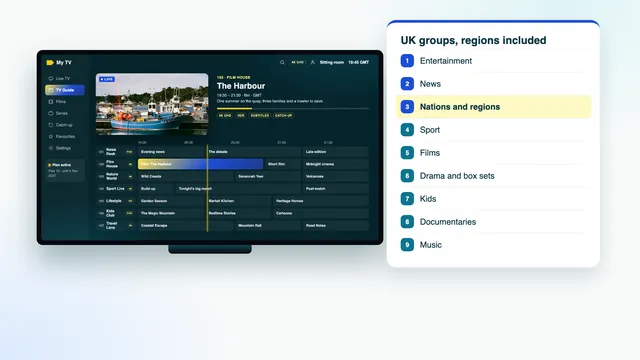
The guide is a grid, with channels in a column on the left, hours running along the top and each programme drawn as a block. Highlight a block and the player shows the title, the start and end times and a short description where the listing has one. Scroll right for the days ahead, up to a week; scroll left on a channel with catch-up and the past week opens up as well.
Most players also show « now and next » in the channel list, a strip with the current programme and the one after it, without opening the full grid. That strip reads from the same data, so if it is right, the grid is right too.
| What you see | Where it comes from | What usually goes wrong |
|---|---|---|
| Programme titles and times | The listings sent with your login | An hour out after the clocks change |
| Descriptions | The same listings, when the channel’s entry has one | Blank on a few channels |
| Seven days ahead | Fetched again by the player at intervals | Only a day or two if the player keeps fewer days |
| Catch-up marks | Each channel’s archive setting | Missing when the player was set up by M3U |
| Favourites and reminders | Saved inside the player on that device | Not shared between your TVs |
The listings come with every plan. The four Flex plans carry the same channels, guide and catch-up, and what an IPTV subscription UK plan includes is set out in full on the home page.
Loading the guide with the Xtream login
The Xtream login is the three-part entry in your message: username, password and server address. Players that take it, IPTV Smarters Pro, TiviMate and XP IPTV among them, ask the same server for the listings as for the channels. There is nothing extra to paste.
- Type the three details into the player’s Xtream Codes login screen and confirm.
- Wait while the player downloads the channel list and then the listings. A progress bar or a line saying the EPG is loading usually shows how far it has got.
- Open the TV guide from the player’s home screen.
- Pick a group, a UK entertainment group for instance, to see its channels in the grid.
The first download is the slow one, because listings for a channel list this large make a big file. A recent stick or box gets through it quickly; an older device on Wi-Fi at the far end of the house can take a few minutes. Let it finish before judging: a guide opened halfway through shows gaps that fill themselves in later.
If the player is not on your TV yet, setting up the player on each screen comes first.
Why a few channels say « No information »
Some channels have no listings at all: channels opened for a single event, a share of the channels from abroad, and second feeds of a channel that already has its own entry. Others lose their listings for a day when the source changes a name. If a channel you watch daily stays blank for more than a day, send its name and group to the team.
Adding the XMLTV link when you use M3U
An M3U playlist is a list of channels and their addresses. It does not have to carry listings, so a player loaded from the M3U link needs a second address before it can draw the IPTV subscription UK TV guide: the XMLTV link, which sits in the same login message.
Where the link goes
- Players with playlist settings, TiviMate among them: open the playlist’s settings, find the EPG or guide source, add the XMLTV link and save. The player then fetches it alongside the channels.
- Kodi: in the PVR IPTV Simple Client add-on, the M3U link goes in the playlist settings and the XMLTV link in the EPG settings; the add-on reloads once you save.
- Players set up from a website with your TV’s MAC address or device key: look for a guide or EPG field on the page where you add the playlist.
- VLC: it plays the channels from the M3U link but draws no seven-day grid, so choose another player if the listings matter to you.
Copy and paste the link wherever you can, rather than typing it with a remote. A single wrong character leaves the guide empty, very often without any error message to tell you why.
How listings find their channels
Each channel in the playlist carries an ID, and each set of listings carries the same ID; the player joins the two. That is why renaming a channel inside the player does no harm, while editing the playlist file by hand can break the match. If only a handful of channels lack listings after you add the link, refresh once before anything else. If a whole group is blank, ask the team to look at that group.
UK time through the year: GMT, then BST
Listings follow the time on UK clocks. From the last Sunday of October until the last Sunday of March that is Greenwich Mean Time; for the rest of the year it is British Summer Time, an hour ahead. The clocks jump forward at 1am in March and fall back at 2am in October, on a Sunday morning both times.
| Period | UK clocks | Compared with UTC |
|---|---|---|
| 25 October 2026 to 28 March 2027 | GMT | Same time |
| 28 March 2027 to 31 October 2027 | BST | One hour ahead |
| 31 October 2027 to 26 March 2028 | GMT | Same time |
A device that knows it is in the UK and knows the date handles all of this alone, and the IPTV subscription UK TV guide lines up without help. Trouble starts when one of those two is wrong, which is why the fix below begins with the device rather than the player.
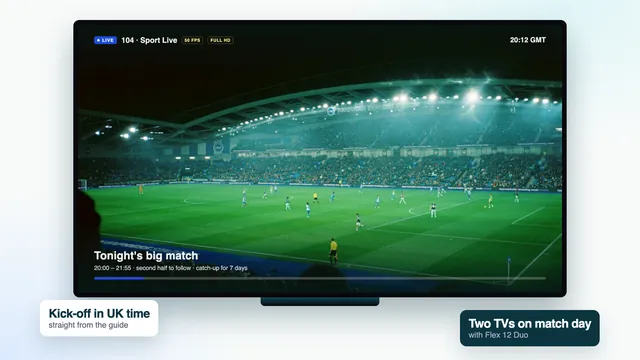
Kick-off times follow the same clock; the sports guide covers match days, frame rates and the evening peak.
Fixing a one-hour shift with the EPG time offset
First make sure the shift is real. Choose something that begins exactly at the top of an hour, a news bulletin for instance, and compare the moment it actually begins with the time in the guide. If the guide says 18:00 and the bulletin starts at 19:00, the guide is an hour early; the other way round, it is an hour late.
- Set the device’s clock to automatic, and its time zone to London or the United Kingdom rather than a fixed « GMT » or « GMT+0 » entry. A fixed entry never moves for summer time.
- Restart the player and refresh the guide, so it reads the times again.
- Only if it is still out, open the player’s settings and find the EPG time offset; some players call it EPG shift or time correction. Try +1 hour if the guide is an hour early and −1 hour if it is an hour late, then look again. If it moves the wrong way, use the other sign.
- Write down what you changed, on the note by the TV or in your phone.
That last step pays off at the next clock change. An offset that cured a fault in October can cause one in March, when the device corrects itself and the offset adds a second hour on top. If the guide goes wrong straight after a change, look at the offset before anything else, and put it back to zero if the device’s own time is now right.
| Symptom | Probable cause | First fix |
|---|---|---|
| Every channel an hour early or late | The device’s time zone is fixed or wrong | Set the zone to London and the clock to automatic |
| Out by an hour since the clocks changed | An offset left over from before | Set the EPG time offset back to 0 |
| Out by several hours | Device set up abroad, or the date is wrong | Correct date, time and zone, then refresh |
| One channel out, the rest right | That channel’s own listing is wrong | Send its name and group to the team |
| Right on one TV, wrong on another | Each device keeps its own clock and offset | Compare the two devices' settings |
Refreshing the guide
Players keep a copy of the listings on the device and fetch a fresh one at intervals, often once a day, sometimes each time the app opens. That keeps the week rolling forward: yesterday drops off the left and a new day appears on the right.
Refresh by hand when:
- the clocks have just changed;
- the guide stops a day or two short of a week;
- a channel that had listings suddenly shows none;
- you have just added or changed the XMLTV link.
The option usually sits in the player’s settings or the playlist menu, with a name such as Update EPG, Refresh guide or Reload playlist. In a player without one, signing out and in again does the same job, provided you have the login message to hand.
When the guide is slow or short
Some players have a setting for how many days of listings to keep; set it to seven. On a stick with little memory, hiding the groups you never watch, countries you do not need for example, leaves fewer listings to load, and the IPTV subscription UK TV guide then opens faster. Hidden groups come back whenever you want them.
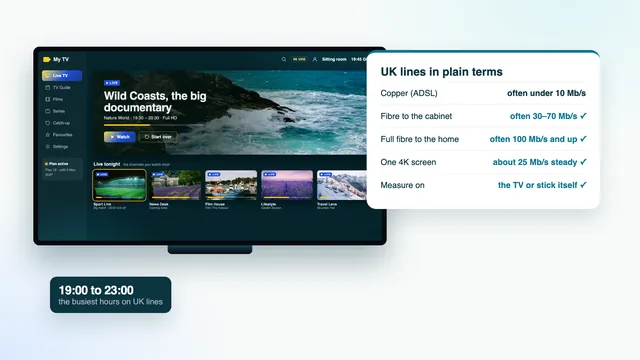
A guide that crawls only in the evening often points at the network rather than the player: how UK broadband behaves at peak times explains what to measure.
Reminders and favourites
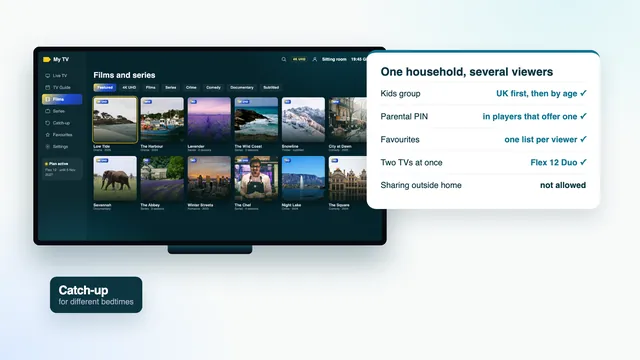
Favourites turn a list of more than 40,000 channels into the dozen your household actually watches. In most players you hold OK on a channel, or open its options, and add it to favourites. The guide can then show that group alone, short enough to read at a glance.
- Favourites are saved by the player on that device. Each TV builds its own list, so a bedroom can have a different one from the lounge.
- Some players let you sort favourites by hand. Put the channels you open most at the top; the guide follows that order.
- After reinstalling a player, a photo of the old list makes rebuilding it a five-minute job.
For younger viewers, favourites and PINs for a family shows how to give each room a list that suits it.
Setting a reminder
Highlight a future programme in the grid and choose remind, reminder or the bell icon, depending on the player. Just before it starts, the player shows a message or switches channel. Reminders live inside the player on that device, and in many players they only fire while the app is open, so one set on the bedroom TV will not appear in the lounge.
For a match, set the reminder on the device you will watch on, a few minutes early if the player allows it. Two rooms watching different games at once need Flex 12 Duo; the plans page compares the screens each plan allows.
Catch-up marks in the grid
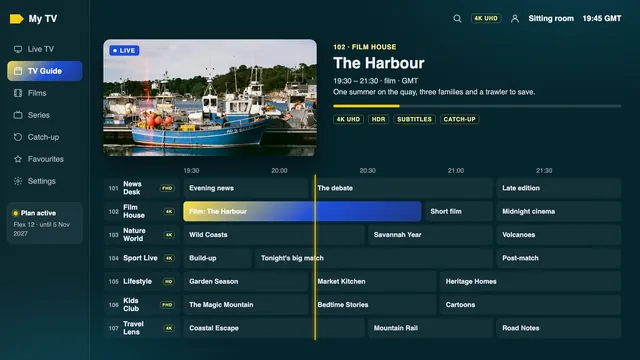
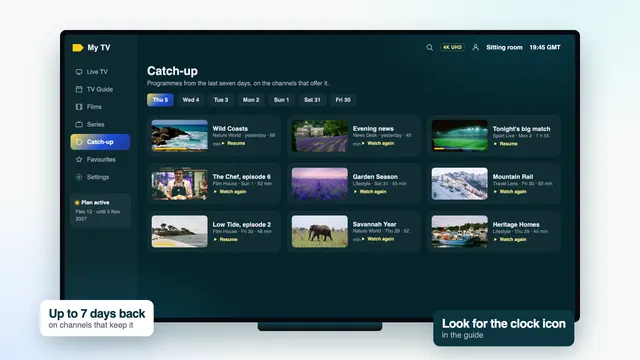
Channels with catch-up carry a small mark beside their name in the guide, often a clock or a rewind arrow. On those channels the past programmes stay selectable; on the rest, the past is dimmed or hidden. How far back a marked channel reaches varies, usually about a week.
Select a past programme on a marked channel and it plays from its opening. On a programme still on air, many players offer to start it from the beginning. How catch-up works, from the icon to seeking covers the catch-up menu, the player settings and moving around inside a programme.
No marks anywhere usually means one of two things: the player was loaded from the M3U link rather than signed in with Xtream, or the player does not handle catch-up. Signing in with the Xtream details fixes the first; a different player fixes the second, and the team can suggest one. Ask the team if you are not sure which applies.
Frequently asked questions
How far ahead do the listings go?
A full week, on UK clocks, and the window moves forward a day at a time as the player refreshes. Channels marked for catch-up also let you scroll back over the previous week and play what was on.
Do I need to do anything when the clocks change?
Not if the device’s clock is automatic and its time zone is London. If you set an EPG time offset by hand earlier in the year, check it after the change, because it may now need to go back to zero.
Can I use the XMLTV link in a second player?
Yes. Any player that accepts a guide address can read it, together with the M3U link from the same message. Both stop working on the end date of your plan.
Why does the guide take a while the first time?
The listings for a very large channel list make a big download, and older sticks unpack it slowly. Let the first load finish; after that the player only fetches updates, and hiding groups you never watch speeds it up.
Why did my reminder not go off?
Usually the player was closed or the device was asleep when the programme started, or the reminder was set on a different TV. Reminders are stored on the device where you set them.
Is the IPTV subscription UK TV guide the same on every plan?
Yes. Flex 3, Flex 12, Flex 12 Duo and Flex 24 share the same channels and the same listings. Only the length and how many TVs may play together set them apart.